AI Agents Take Over Lesson Prep
It has been a while since I have written about how I use Emacs/LaTeX to generate lesson notes for my students. Quite a lot has happened during that time. One of the main game changers has been the advancements in “AI” technology. Over the next few articles I intend to describe my journey as I navigate this technology and apply it to my teaching practice.
Chat Bots
Having decided to dip my toe in the water, I signed up to two of the prevalent players in this space, being Google Gemini and Anthropic Claude. My early experiments with ChatGPT had led to some disappointing results, where it emphatically tried to convince me that the value of Euler’s constant is 1.5. Since then, the technology has advanced significantly, and I thought it worthwhile to try again.
My process to this point had been to generate lesson notes in LaTeX by hand. Where I got stuck trying to work out how to draw TiKZ diagrams, I would refer to the Stack Exchange website and the TiKZ reference manual to get ideas. I was happy with the results, but it was quite time-consuming. So, this was the first place I would try to make use of AI.
I would go to the chatbot website and prompt AI with a description of the type of diagram I wanted, and it would generate the TiKZ code. I would copy-paste it into my document, compile to see what it looked like, and ask the AI to make refinments. I then found out that AI can actually take in an image of an existing diagram and do a decent job of generating TiKZ code to approximate the diagram. This saved me some time, but was a bit tedious with all that copy-paste activity. Surely there had to be a better way…
Enter the AI Agents
I had heard of people using AI for coding tasks. Since LaTeX is just another programming language, perhaps I could use those development tools to generate my lesson notes. This led me down the rabbit hole of AI Agents.
When you have a chat bot window, it is like an isolated sandbox. It has no access to the files on your system. If the want the chatbot to know about a document, you need to attach it to the chat box. The chat bot can generate code, but you need to copy-paste it into your editor window so you can save it to a file and compile the code.
An AI Agent, on the other hand, is some software that runs on your local system. The AI model can generate text output in a special JSON format that describes what operations it would like performed on your system. The AI Agent software interprets this JSON block of text, and then executes the required operations on your system. These operations may be things like reading a file, writing a file, running a shell command such as LaTeX compiler, and even deleting files that are no longer needed. So, no more copy-paste — the LLM AI can ask your agent to do whatever is needed.
While this is immensely convenient, giving the LLM free range to make changes to your system is quite dangerous. Many of these AI Agent clients have a permission system where they display the command or operation they plan to run, and ask for your permission to allow that operation to be run just once, to be run every time, or even deny that operation. You can tell the agent that it may only operate on files in a particular directory (the “project” directory), and it is prudent to use a configuration management system like git so that if the LLM/Agent do something unfortunate, you can revert your files to a previous commit.
Keen to give this a try, I needed to find an some AI Agent client software that would be compatible with the LLM I decided to use.
Claude Code
In order to maximise my chances of success, I decided to start with Anthropic’s Claude LLM, which has a reputation as being state-of-the-art for code development. Anthropic provides an AI Agent harness called “Claude Code” which is designed to work with the Claude models, so this seemed a good place to start.
Claude Code in Emacs
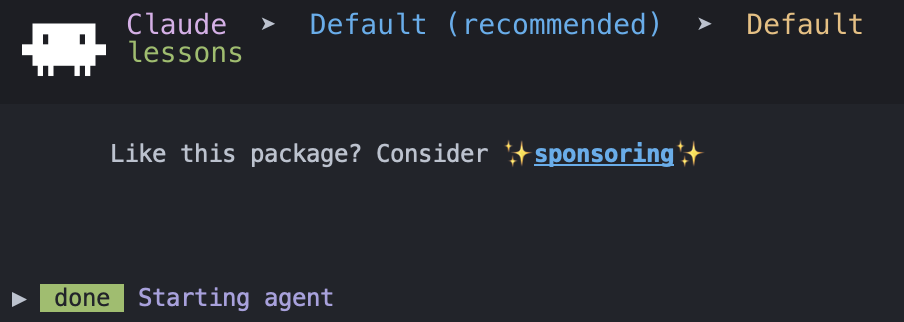
As an Emacs enthusiast, of course I wanted to see if I could get everything running in Emacs, including the AI Agent, the LaTeX source, and the PDF output. Of course, I could run the Claude Code CLI in a vterm buffer, but I discovered that there is an Emacs package called agent-shell which invokes AI Agents such as Claude Code in an Emacs buffer. After having installed Claude Code on my system, I told Doom Emacs in my packages.el file that I want to use the agent-shell package:
| |
I then defined a handy key binding, and set the default Claude model to be Sonnet:
| |
Sonnet is the mid-level tier LLM. Other options are Haiku, which is cheap and ok for basic edits, and Opus which is the high-end model, more expensive but can deal with some more complex code that Sonnet may struggle with.
I tell emacs that I want to use my lessons directory with the M-x cd command, and start the agent with M-x agent-shell. I am presented with a number of agent options, and choose Claude. I’m up and running!
So, what now? Let’s make a lesson:
| |
Claude will then explore the directory structure of the project, and discover where my yesar 8 lessons are. It will see what lessons I’ve already written, and generate the new lesson in a similar format, writing the file according to my existing naming convention. All I need to do is open the lesson.tex file in an emacs buffer, compile it with C-c C-c, and view the PDF output.
Oh dear, the generated lesson doesn’t compile! Claude has let me down. Let’s see if it can redeem itself:
| |
Claude goes off and checks the compile logs. It notices it forgot to include an imprtant package, adds it to the document preamble, and recompiles. Success! I can view the document in Emacs, and review the lesson notes. If I see any issues, I can provide feedback to Claude, and very soon I have a polished set of notes I can use.
I want to make sure that Claude doesn’t repeat these mistakes next time I ask it to make lesson notes:
| |
Skills are a set of notes, typically in Markdown format, that Claude can read at the start of a session. These notes can include instructions such as always check that files compile, cross-check the lesson content against the syllabus, etc.. This information then becomes persistent across sessions so that next time your prompt can be briefer.
Claude Code desktop app
After running claude in the manner, I came up with a workflow that had the LaTeX source, Claude shell and PDF file in separate Emacs windows. This was working well, until I realised that it was more convenient to have just LaTeX source and PDF windows in my Emacs frame, and use the Claude Code desktop app on a second monitor. The desktop app can still create the files, run the compiler, check things into git, etc., and in Emacs I have more space to view the document and its source.
So, about the cost…
With Claude Pro, there is an affordable monthly subscription for around $30/month. This is a subsidised cost that allows you to use Claude up to a certain point, beyond which you are either blocked until your usage window resets, or you can pay extra to continue if you don’t want to wait.
During my initial experiments, I found it very easy to run out of usage quota, and so I investigated some strategies to reduce my token usage:
- within a chat session, the entire chat history is passed to the LLM every time you enter a new prompt. This can consume a lot of tokens, and so it is best to keep the chat sessions short, limited them to a single lesson or a short sequence of related lessons. When moving to a new year group, start a fresh chat.
- if you are working on a lesson sequence, it can make sense to use a
/compactcommand. This causes the LLM to generate a summary of the chat session, and replace the chat history with that short summary. You still retain an overview of what you have been working on without all the details and mis-steps. - If you are often referring to a document such as the teaching syllabus, convert it into a text format that is easier for the LLM to parse. I like to tell the AI to convert the syllabus into an Org mode file. That is an expensive operation, but you only need to do it once. The AI can then refer to the text file rather than converting the syllabus from PDF to text every single time.
- other optimisations might include telling the LLM to use compiler flags that reduce the text written to
stdout, and tell it to review the compile log files only if the compiler returns an error code on completion of the job.
With these optimisations, Claude becomes an affordable and very effective assistant in producing lesson notes. However, this pricing level is something of a loss-leader for these AI companies, and it is unlikely they will be able to continue offering these prices in the long term. I feel uneasy that I might get hooked on this type of workflow, and may not be able to afford it in the future.
Next time I will talk about an alternative workflow that I set up to address this concern.